

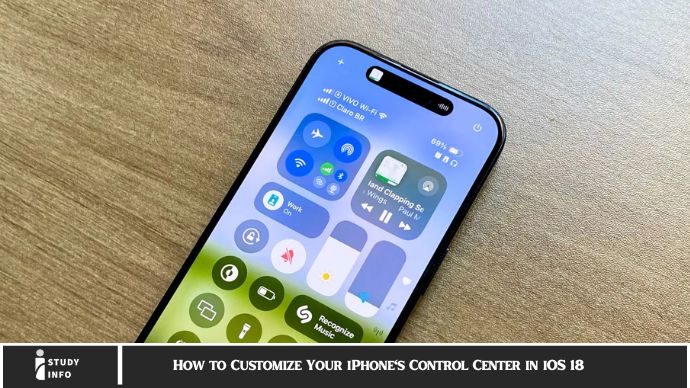
How to Customize Your iPhone’s Control Center in iOS 18 Have you ever wished you could access your iPhone’s most-used features with a single swipe? With iOS 18, Apple has made it easier than ever to customize your Control Center to fit your unique needs. Whether you want quick access to smart home controls, media playback, or everyday settings like Wi-Fi and Bluetooth, this powerful tool allows you to tailor your experience for ultimate convenience.
Gone are the days of sifting through menus to adjust settings. Now, with just a swipe, you can bring your most important controls front and center, saving time and making your iPhone experience even smoother. In this guide, we’ll show you how to unlock the full potential of Control Center customization in iOS 18—so you can make your iPhone truly your own. Ready to get started? Let’s dive in!
What is Control Center on iPhone?
Before we jump into how you can customize it, let’s take a moment to understand what the Control Center actually is. If you’ve used an iPhone for any length of time, you’re probably familiar with this handy tool. It’s that slide-up or swipe-down feature that gives you quick access to some of the most-used functions on your iPhone. Think of it as your digital dashboard!
With iOS 18, Control Center allows you to access a variety of tools, from toggling settings like Wi-Fi and Bluetooth to adjusting volume and brightness levels. You can even control media playback and see important notifications. Simply put, it’s your one-stop-shop for all your iPhone essentials, designed to streamline your experience and make everyday tasks faster.
Why Customize Control Center?
Customizing your iPhone’s Control Center offers more than just aesthetic appeal. It’s about enhancing your daily tasks and improving your overall experience. By tailoring this area to your preferences, you can save valuable time, avoid repetitive steps, and access key functions faster. Customization also lets you remove unused settings and add those you use most.
For example, if you’re someone who frequently switches between apps or adjusts volume settings, you can move those tools front and center. Customizing your Control Center helps you stay productive, organized, and much more efficient!
How to Access the Control Center in iOS 18
Before you can customize your Control Center, you need to know how to access it. Depending on the model of iPhone you have, the way you open the Control Center can differ slightly.
- iPhones with Face ID: Simply swipe down from the top-right corner of the screen to reveal your Control Center.
- iPhones with Touch ID: Swipe up from the bottom edge of the screen.
Now that you know how to access it, let’s dive into customizing it to your heart’s content.
1. How to Add and Remove Controls in Control Center
In iOS 18, Apple gives you the ability to add and remove specific controls from your Control Center, so you can have easy access to only the features you actually use.
Adding Controls:
To add controls:
- Open Settings on your iPhone.
- Scroll down and tap Control Center.
- Tap Customize Controls.
- You’ll see a list of available controls. Tap the green + icon next to the features you want to add.
Popular additions include Screen Recording, Low Power Mode, Alarm, and Notes. If you need something quicker than diving into the full app, adding it here will save you time!
Removing Controls:
If there are features you never use and want to declutter your Control Center, removing them is just as easy.
- In the Customize Controls section of Settings, tap the red – icon next to the controls you wish to remove.
After you remove a control, it will no longer appear in your Control Center.
2. Rearranging Controls in Control Center
iOS 18 allows you to rearrange the controls in your Control Center to suit your preferences. The most-used features should ideally be placed at the top of the list, where you can access them with just a quick swipe.
How to Rearrange:
- Go back to the Customize Controls section in Settings.
- You’ll see the list of added controls with a three-line icon next to each one.
- Simply tap and hold the three-line icon and drag the control to its new position.
Rearranging your controls ensures that you have your most-used features right where you want them, improving accessibility and overall functionality.
3. Using HomeKit Controls in Control Center
If you’ve set up smart home devices via Apple HomeKit, you can access those controls directly from your Control Center in iOS 18. This is a major time-saver, especially if you’re controlling lights, thermostats, or locks throughout your home.
How to Add HomeKit Controls:
- Go to Settings > Control Center > Customize Controls.
- Tap + next to Home under “More Controls.”
- Once added, you can access smart home controls by swiping to your Control Center. You’ll be able to turn on lights, adjust temperatures, and more with a single tap.
It’s perfect for those who love having full control over their smart home devices without juggling multiple apps.
4. Customizing Widgets in Control Center
iOS 18 also lets you add widgets to your Control Center. Widgets give you instant access to specific information, such as weather updates, your calendar, battery levels, and more. You can personalize them to display the information most relevant to your needs.
How to Add Widgets:
- Open Settings > Control Center.
- Tap Customize Controls.
- Scroll down and tap + next to the Widgets option.
- Once added, you can swipe through different widgets right from your Control Center.
From Battery Levels to Weather Information, these widgets make it easy to view important info without unlocking your phone.
5. Using Do Not Disturb and Focus Mode Quickly
A new addition to iOS 18 is the Focus Mode feature, which allows you to filter notifications based on your activity or location. Whether you’re at work, home, or relaxing, Focus Mode can keep distractions at bay.
How to Customize Focus Mode:
- Open Control Center.
- Long-press the Focus Mode button.
- You’ll see a range of Focus Modes like Do Not Disturb, Sleep, or custom modes you’ve created.
- Tap the mode you’d like to activate.
Focus Mode works seamlessly within your Control Center, ensuring you stay focused on what matters, whether that’s work, relaxation, or exercise.
May you also like it:
How To Fix Zoom Error Code 10004 (5 Quick Fixes)
How to Use Gemini AI to Make Presentations in Google Slides
How to Turn Off Incognito Mode on Android: A Simple Guide 2025
FAQs
1. Can I add more controls to the Control Center?
Yes! You can easily add controls from the Customize Controls section in Settings.
2. Can I remove controls I never use?
Absolutely! You can remove any controls you don’t use by tapping the red – icon next to them in Customize Controls.
3. How do I rearrange the controls in Control Center?
Go to Customize Controls, and simply drag the controls using the three-line icon to reorder them.
4. Can I add widgets to my Control Center?
Yes, you can add widgets like Weather, Battery, and Calendar to your Control Center for quick access.
5. How can I activate Focus Mode from Control Center?
Just long-press the Focus Mode button in Control Center and select your desired mode.
6. What happens if I don’t update my Control Center settings in iOS 18?
You might miss out on important features and settings that enhance the overall user experience. It’s always a good idea to keep your settings up-to-date.
Conclusion
Customizing your iPhone’s Control Center in iOS 18 is a game-changer, offering quicker access to your most-used tools, widgets, and settings. Whether you’re enhancing your multitasking abilities or simply organizing your device to better fit your needs, making these small tweaks can lead to major improvements in efficiency.
Don’t wait! Head to your settings now and start customizing your Control Center. The more personalized it is, the faster you’ll access everything you need!
